Minecraft has lasted because players can shape it into almost any kind of game they want. One player might spend hours building a medieval city, another might explore dangerous caves, and someone else might prefer automated factories, magical equipment, or enormous fantasy worlds. Minecraft mods take that freedom further by changing how the game looks, plays, and develops over time.
Mods can introduce new creatures, weapons, dimensions, crafting systems, machines, farming options, and quality-of-life improvements. Some make the original survival experience smoother, while others transform Minecraft into something that feels almost like a different game.
However, choosing the right mod involves more than finding an interesting screenshot. You need to check your Minecraft edition, game version, mod loader, hardware, and any required dependencies. A mod designed for one setup may not work with another.
This guide explains the main types of mods, popular projects worth exploring, where to find downloads, how to install them, and how to avoid common compatibility and performance problems.
What Are Minecraft Mods?
Minecraft mods are player-created modifications that change or extend the game’s original content and mechanics. Depending on the project, a mod might add a new inventory feature, redesign world generation, introduce machines, expand combat, or create entirely new progression systems.
Unlike a texture change, which mainly affects appearance, a gameplay mod can alter what players do and how they interact with the world.
For example, a building-focused mod might provide additional construction tools, while a technology mod could introduce machines that process resources automatically. An exploration mod might add structures to discover, and a minimap mod could help players navigate unfamiliar terrain.
Mods are particularly associated with Minecraft: Java Edition on PC. They are generally distributed through third-party platforms and may require additional software to run. Mojang notes that these modifications are independently developed rather than officially created, reviewed, or endorsed by Mojang Studios.
Bedrock Edition uses a different customization system, commonly called add-ons. These can change textures, entities, items, recipes, and selected gameplay behaviors through supported resource and behavior packs.
Understanding this distinction before downloading anything can save considerable time.
Best Types of Minecraft Mods to Try
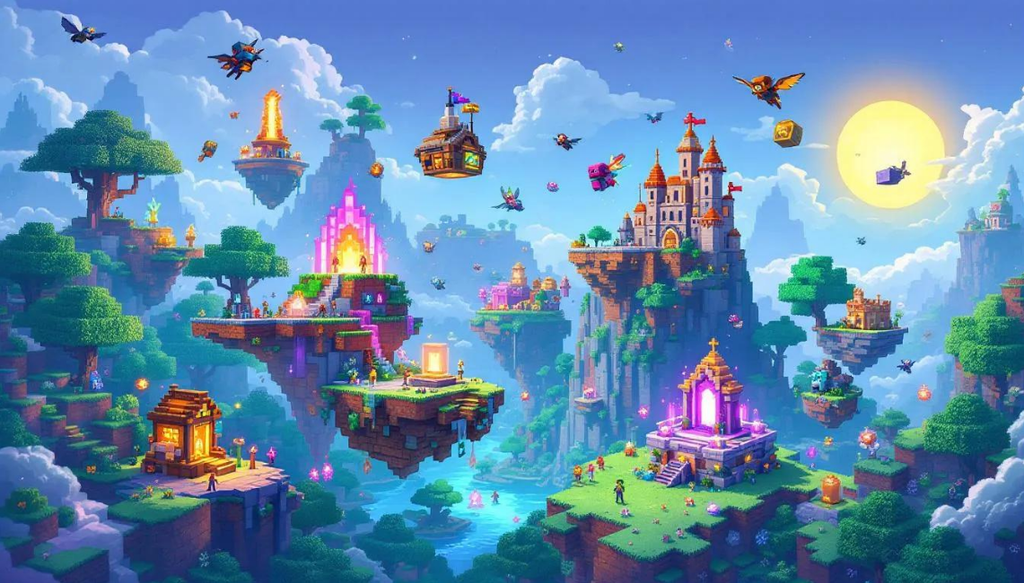
There is no single best mod for every player. The most useful choice depends on what feels limited in your current world.
Performance and visual improvements
Performance-focused mods are useful when the game struggles with frame rates, loading, or rendering. Depending on the version and setup, optimization projects can reduce unnecessary processing and improve how smoothly the game runs.
Graphics-focused modifications serve a different purpose. Shader packs can change lighting, shadows, reflections, water, and the appearance of the sky. High-resolution resource packs can replace familiar textures with more detailed alternatives.
These improvements can make a world look substantially different, but they are not free upgrades in every situation. Some shaders and resource packs increase GPU or memory demands, so players using older hardware should start with modest settings.
A practical approach is to improve performance first, then add visual effects gradually. That makes it easier to identify which change is responsible if frame rates drop.
Survival and difficulty mods
Vanilla survival already asks players to gather resources, craft equipment, manage hunger, build shelter, and prepare for hostile mobs. Survival mods can make these systems deeper or introduce new decisions.
Some add more demanding enemies, environmental hazards, or challenging progression. Others expand food production, farming, equipment, or the consequences of exploring dangerous locations.
These mods are especially useful for players who know the standard survival loop well and want additional goals. However, difficulty changes are not always balanced around every other mod in a collection. A stronger enemy combined with weaker starting equipment can make early progression unnecessarily frustrating.
Check the description for intended difficulty, required dependencies, and compatibility with other combat or progression modifications.
Exploration and world generation
Exploration mods can make starting a new world feel less predictable. Depending on the project, they may introduce new structures, underground locations, biomes, creatures, or dimensions.
This category works particularly well for players who enjoy discovering places rather than building everything in one location. New structures can also give survival worlds useful destinations and reasons to prepare better equipment before travelling.
World-generation changes deserve extra caution. Mods that alter terrain or structures can affect how new chunks are created. Adding or removing them after exploring a large world may produce inconsistent terrain or leave previously generated areas unchanged.
For a major world-generation overhaul, creating a fresh world is usually the safer option.
Building and decoration mods
Builders often want more variety than the standard collection of blocks provides. Building-focused mods can add decorative objects, furniture, construction tools, additional block variations, or features that simplify large projects.
These additions can make it easier to design detailed interiors, industrial facilities, castles, towns, and themed survival bases.
Quality-of-life tools can be equally valuable. Depending on the mod, players may gain more efficient ways to place blocks, manage inventories, or organize large construction projects.
Before choosing a building mod, consider whether you mainly play alone, build with friends, or use a shared server. Everyone joining a modded environment may need compatible content, and server rules can restrict which modifications are permitted.
Technology, automation, and magic
Technology mods introduce systems that revolve around machinery, energy, resource processing, logistics, or automated production. They can turn mining and crafting into longer engineering projects.
Magic-oriented mods take another direction, adding spells, magical equipment, rituals, or supernatural progression. Some emphasize exploration and combat, while others focus on crafting and experimentation.
Both categories can provide long-term goals beyond defeating the Ender Dragon. They are especially attractive to players who enjoy learning complex systems and gradually improving their equipment or production chains.
The trade-off is complexity. A large technology or magic mod may have its own progression rules, recipes, and dependencies. Read its documentation before installing several similar projects together.
Popular Minecraft Mods Worth Exploring
The following projects are useful starting points for researching different play styles. Availability and supported versions can change, so check each project’s current release information before installing it.
Sodium — performance optimization
Sodium is a graphics optimization mod for Java Edition that focuses on improving rendering performance. It is worth investigating if you want smoother gameplay without redesigning your entire survival experience.
Its benefits depend on your hardware, Minecraft version, settings, and the other modifications installed. It is not a guarantee that every computer will achieve the same frame rate.
Check the project’s supported versions and compatibility notes before adding it to a profile.
Iris Shaders — shader support
Iris provides a way to use supported shader packs in compatible Java Edition setups. It is useful for players who want more advanced lighting and atmospheric effects.
Remember that Iris and a shader pack are separate pieces of software. Installing shader support does not automatically mean that a particular shader will work well with your computer.
Start with a shader that matches your hardware, then adjust shadow quality, render distance, and other demanding settings if performance suffers.
JEI — recipe and item information
Just Enough Items, often shortened to JEI, helps players inspect items and recipes in supported modded setups. It becomes particularly valuable when several content mods introduce hundreds of additional items.
Without a recipe viewer, learning how to craft a machine component or unfamiliar tool may require repeated trips to documentation pages. An in-game reference can make complex modpacks easier to understand.
Always check which game versions and mod loaders the project currently supports.
Create — mechanical engineering and automation
Create is a technology-focused mod built around mechanical systems and moving components. Its appeal comes from designing machines and production lines rather than simply receiving a new set of automated crafting menus.
Players can experiment with mechanical contraptions, processing systems, and visually understandable machinery. It suits builders who enjoy both engineering puzzles and attractive industrial designs.
Because large contraptions can involve many moving parts, consider performance when building elaborate systems or combining Create with other demanding mods.
Biomes O’ Plenty — world variety
Biomes O’ Plenty expands world-generation variety with additional biome content in supported versions. It is a strong candidate for players who want fresh landscapes and more visual diversity while exploring.
Its usefulness depends on the Minecraft version and world-generation setup you choose. It may also overlap with other biome or terrain mods, so installing several world-generation overhauls together requires careful compatibility checking.
For a major exploration-focused setup, test the combination in a new world before committing to a long survival save.
Waystones — easier travel
Waystones is known for adding a way to travel between discovered locations through its supported teleportation system. It can make large worlds more manageable when players establish distant bases, villages, or exploration hubs.
Fast travel can also change survival balance. If travelling becomes nearly effortless, distance and preparation may matter less than they do in vanilla Minecraft.
Check the mod’s configuration options if you want to preserve some challenge while reducing repetitive journeys.
Xaero’s Minimap — navigation assistance
Xaero’s Minimap provides a minimap-style navigation aid in compatible Java Edition environments. It can help players recognize nearby terrain and navigate areas they have already explored.
Navigation tools are useful for long expeditions, but server administrators may restrict certain map or tracking features. Review server rules before using them in multiplayer.
How should you choose between them?
Start with the problem you want to solve:
- For smoother rendering, investigate Sodium.
- For shader support, investigate Iris.
- For recipe discovery in modded play, consider JEI.
- For mechanical engineering, explore Create.
- For more varied landscapes, look into Biomes O’ Plenty.
- For easier travel between locations, consider Waystones.
- For map-based navigation, examine Xaero’s Minimap.
This is a selection of established projects rather than a universal ranking. The right choice still depends on current compatibility, your preferred Minecraft version, and the kind of world you want to create.
Java Edition Mods vs. Bedrock Add-Ons
One of the most common modding mistakes is downloading content for the wrong edition.
| Feature | Java Edition mods | Bedrock Edition add-ons |
|---|---|---|
| Typical environment | Java Edition on PC | Bedrock-compatible platforms |
| Installation | Often uses a mod loader or mod manager | Commonly uses Marketplace content or imported packs |
| Customization | Can deeply change gameplay and systems | Uses supported resource and behavior pack capabilities |
| Compatibility | Depends on game version, loader, and dependencies | Depends on edition, platform, pack features, and world settings |
| Consoles | Java mods are not the standard console modding route | Add-ons are available through supported Bedrock features |
| Best starting point | A trusted mod platform and compatible profile | Minecraft Marketplace or reliable compatible add-on sources |
Java Edition mods can modify game systems extensively, but they require more attention to versions and dependencies. Bedrock add-ons offer a more integrated route to customization across supported devices.
Official Minecraft documentation explains that Bedrock resource packs can change assets such as textures and sounds, while behavior packs can alter entity behavior and other supported game mechanics.
If you play on PlayStation, Xbox, Nintendo Switch, or a mobile device, do not assume that a Java .jar mod will install like a Bedrock add-on. Identify your edition first, then follow the installation method intended for it.
How to Download and Install Minecraft Mods
For beginners using Java Edition, a reputable mod manager is often easier than manually moving files. Manual installation is still useful when you want greater control over your setup.
Choose a trusted download source
Start with established mod platforms such as CurseForge or Modrinth. Search for the exact project, read its description, and inspect the supported game versions.
Avoid random download mirrors, suspicious installer bundles, and pages that hide the actual download behind misleading buttons. Mojang’s own guidance warns that third-party modifications can cause problems and are not officially supported.
Check the Minecraft version and mod loader
Before downloading, confirm three things:
- The Minecraft version supported by the mod.
- The loader required by that specific release.
- Any additional dependencies listed by the author.
Forge, NeoForge, Fabric, and Quilt are distinct mod-loading ecosystems. A mod built for one is not automatically compatible with another.
Fabric is known for its lightweight loader, while Forge and NeoForge support their own mod ecosystems. The best loader is the one required by the content you want to use—not necessarily whichever one is most popular.
Create a separate profile
Use your launcher or mod manager to create a separate installation or profile for modded Minecraft. Give it a clear name, such as “Survival Mods Test.”
Keeping modded and vanilla installations separate makes it easier to troubleshoot problems and reduces the risk of disrupting your usual play session.
Back up important worlds before testing unfamiliar modifications. For world-generation or major gameplay changes, a fresh test world is often the best option.
Install the mod
If you use a compatible mod manager, select the correct game version and loader, then follow its installation workflow.
For manual Java Edition installation:
- Install the loader specified by the mod.
- Launch the game once with that loader if its instructions recommend it.
- Locate the relevant Minecraft game directory and its
modsfolder. - Place the downloaded mod file in that folder.
- Add any required dependencies, following their own compatibility instructions.
- Launch the correct modded profile and check whether the game loads successfully.
Do not extract a mod archive unless its documentation specifically tells you to. Many Java Edition mods are distributed as .jar files that should remain intact.
Test before adding more mods
Launch Minecraft with a small number of modifications first. Check the main menu, enter a test world, and confirm that the expected features appear.
Add more mods gradually rather than installing dozens at once. If the game starts crashing, changing one thing at a time makes the cause much easier to identify.
What about Bedrock Edition?
For Bedrock, use the supported add-on workflow for your platform. You can select compatible content through the Minecraft Marketplace or import supported packs from a trustworthy creator.
When activating packs in a world, follow the in-game instructions for resource packs and behavior packs. Back up important worlds before introducing major changes, and check whether the add-on supports your device and multiplayer setup.
How to Choose Compatible Mods
A collection of good individual mods can still make a poor modpack if their requirements conflict.
Version compatibility comes first. A mod that supports an older Minecraft release may not work on the latest version. Never assume that a project has been updated just because its download page is still online.
Next, consider the loader. If a project provides separate files for Fabric and Forge, choose the release intended for your profile. The filename alone may not tell you everything, so read the project page.
Dependencies matter, too. Some mods require libraries or APIs to provide shared functionality. Missing a dependency can prevent Minecraft from starting, even if the main mod file is correct.
Finally, think about overlap. Two minimap tools, multiple terrain overhauls, or several mods that change the same combat systems may duplicate features or conflict. Check compatibility notes and test combinations instead of assuming that everything can run together.
For multiplayer, make sure the server supports the setup. Some modifications only change a player’s client, while others need corresponding server-side installation. Server rules may also prohibit particular gameplay advantages.
Safety, Performance, and Troubleshooting
Modding gives players more control over Minecraft, but downloading and running third-party code requires sensible precautions.
Download carefully
Use established platforms and the project’s legitimate page. Check creator information, update history, documentation, and compatibility details. Be suspicious of downloads that require unrelated executable installers or ask you to disable security protections.
Keep security software enabled, and do not enter account credentials into unofficial pages promising free premium content. A popular mod is not automatically safe just because its name is familiar.
Protect your worlds
Back up important saves before changing a modded profile. Some modifications affect world data, block states, items, or terrain generation. Removing them can leave missing content or make a save difficult to load correctly.
If a modpack becomes unstable, return to a known working profile rather than repeatedly modifying your main world.
Fix common problems
Minecraft crashes on startup: Check the crash report for the first relevant error. Verify the game version, loader, dependencies, and whether any mod is duplicated or incompatible.
A mod does not appear in-game: Confirm that you launched the correct profile and placed the file in the active instance’s mods directory. Mod managers may use their own separate game folders.
Performance gets worse: Remove demanding visual effects temporarily, lower render distance, and test the game with fewer mods. More content does not always mean better performance.
A world fails to load after removing a mod: Restore a backup if possible. Reinstalling the missing mod may allow the world to open, but do not assume that removing it permanently is safe for that save.
Multiplayer refuses the connection: Check whether the server and client use compatible versions and required content. Ask the administrator which mods are allowed instead of repeatedly changing files at random.
Are Minecraft Mods Worth It?
For many Java Edition players, mods are one of the most useful ways to personalize Minecraft. They can add meaningful progression, improve navigation, streamline inventory management, expand construction options, or create a world built around engineering and exploration.
The main trade-off is maintenance. Every additional modification can introduce another version requirement, dependency, performance cost, or compatibility issue. Large modpacks can also feel overwhelming if they introduce too many systems at once.
The best starting setup is usually small and purposeful. Choose one or two changes that improve the way you already play, make sure they work, and expand from there.
If you mainly want new content without complicated setup on a supported Bedrock device, add-ons may be the better fit. If you want deeper changes to Java Edition’s mechanics and progression, traditional mods offer much broader possibilities.
Conclusion
The best Minecraft mods are the ones that improve the experience you actually want—not simply the ones with the longest feature lists. Performance tools can help smooth out gameplay, shader support can change a world’s appearance, and content mods can introduce new systems to explore for dozens of hours.
Start by identifying your edition, selecting a compatible version and loader, and downloading from a trusted source. Keep a clean profile, back up valuable worlds, and test new additions before building a large collection.
With a little preparation, modding can turn a familiar Minecraft world into a fresh survival challenge, a detailed building sandbox, or a complex engineering project without losing sight of what makes the original game enjoyable.
FAQ
Are Minecraft mods free?
Many Java Edition mods are available for free on platforms such as CurseForge and Modrinth. Always check the individual project’s terms and use legitimate download pages.
What are the best Minecraft mods for beginners?
Start with a mod that solves a specific problem. Sodium is worth exploring for performance, JEI for recipe information in modded gameplay, and Xaero’s Minimap for navigation. Check current version and loader compatibility first.
Can you install Minecraft mods on Bedrock Edition?
Bedrock Edition primarily uses add-ons rather than traditional Java Edition mods. Compatible add-ons can add content or change selected gameplay features through supported installation methods.
Is Fabric better than Forge for Minecraft mods?
Neither is universally better. Fabric is a lightweight mod-loading option, while Forge and NeoForge support their own mod ecosystems. Choose the loader required by the mods you want to install.
Where can I safely download Minecraft mods?
CurseForge and Modrinth are established places to find Java Edition mods. Check the project page, supported versions, dependencies, and creator details, and avoid suspicious download mirrors.
Can Minecraft mods damage a world?
Mods can make a world unstable or cause missing content if they alter world data and are later removed. Back up important saves before installing, updating, or removing major modifications.
Do Minecraft mods work in multiplayer?
Some mods work on the client, while others require compatible server-side installation. Both the server and player may need matching versions and dependencies. Always check the server’s rules.
Do Minecraft mods slow down a PC?
Some mods improve performance, while others increase CPU, memory, or graphics demands. Large modpacks and demanding shaders can reduce frame rates, especially on less powerful computers
LEAVE A PIXEL ZINE COMMENT