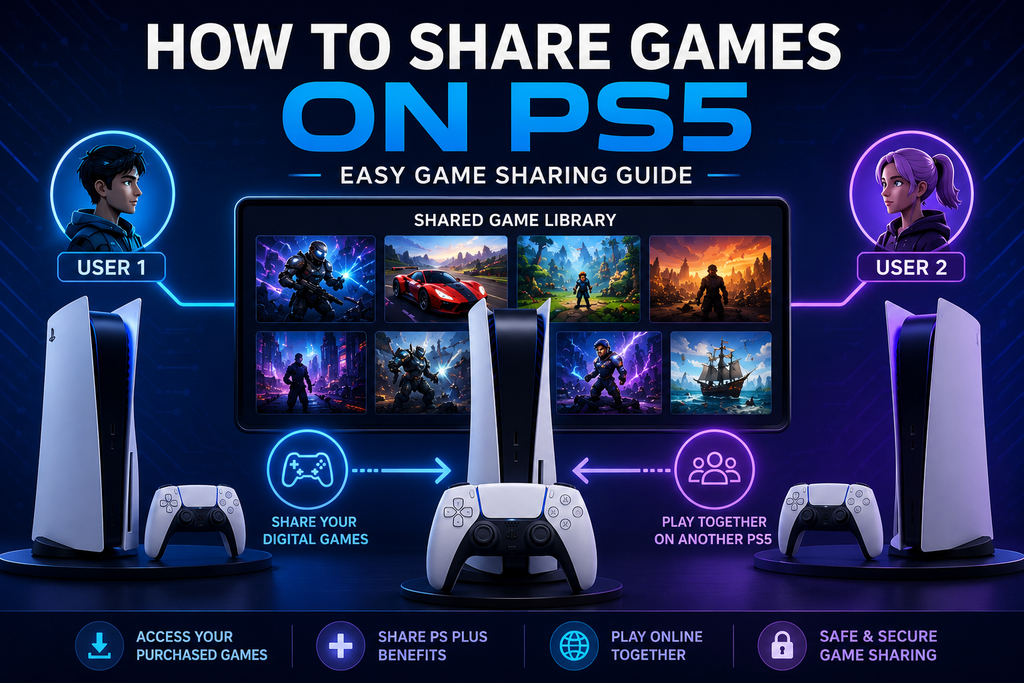
If you own digital games how to share games on PS5 and want another user on a different PS5 to access them, the feature you are looking for is Console Sharing and Offline Play. It allows other users on one designated PS5 to play games and use media purchased and downloaded by the account that enabled the feature. Some PlayStation Plus benefits can also be shared.
The important distinction is that PS5 Console Sharing is not the same thing as Share Play. Console Sharing gives other users on one PS5 access to eligible purchased games, while Share Play is designed for temporarily letting a friend experience or play a game through a session.
Here is how to set up PS5 game sharing, what the feature actually allows, and what to do if a shared game displays a padlock.
What Does Game Sharing on PS5 Actually Mean?
Sony’s official name for the feature is Console Sharing and Offline Play.
Once it is enabled on a PS5, other users who use that console can play games and media that the purchasing account has bought and downloaded. They can also benefit from certain PlayStation Plus features.
The simplest way to think about it is:
Your digital purchases are tied to your PlayStation account, but Console Sharing lets other users on one designated PS5 access eligible purchases without having to purchase them again on their own accounts.
This is particularly useful in households where multiple people use the same console. It can also be useful when two people have separate PS5 consoles and want to make use of a shared digital library, but the activation limit is important.
Sony currently allows Console Sharing and Offline Play to be enabled on one PS5 at a time for an account.
That single console limitation is one of the most important details to understand before changing the setting.
How to Share Games on PS5
Setting up PS5 game sharing is straightforward once you know which menu to use.
Enable Console Sharing and Offline Play
On the PS5 that you want to designate for sharing:
- Sign in with the PlayStation account that owns the digital games.
- Open Settings.
- Select Users and Accounts.
- Choose Other.
- Select Console Sharing and Offline Play.
- Choose Enable.
Those are the current menu steps provided by PlayStation’s support documentation.
If Console Sharing was already enabled on another PS5, Sony says you need to disable it there before activating the new PS5 for sharing.
The PS5 you enable becomes the console where other users can access the owner’s eligible downloaded purchases.
Download the Games
After enabling Console Sharing, download the digital games you want to make available on that PS5.
The account that purchased the games needs to have access to those purchases. Once the games are downloaded, other users on the designated PS5 can access eligible purchases through their own user profiles. PlayStation specifically states that users of the shared PS5 can play purchased and downloaded games even when the console is offline.
This is different from simply installing a game while another account happens to be signed in.
The Console Sharing and Offline Play setting is what establishes the sharing relationship.
Return to Your Own PS5
If the account owner also has another PS5, they can return to that console and use their own account normally.
The key limitation is that Console Sharing and Offline Play remains enabled on only one PS5 at a time. If you later decide that another PS5 should become the shared console, you must change the activation.
This is why game sharing works best when you decide in advance which PS5 should receive the shared console status.
What Can You Share on PS5?
Console Sharing covers more than simply allowing another user to launch a downloaded game.
According to PlayStation, when Console Sharing and Offline Play is enabled, other users on that PS5 can:
- Play games purchased and downloaded by the account.
- Access certain media purchased and downloaded by the account.
- Play shared content while the console is offline.
- Receive certain PlayStation Plus benefits.
There are, however, important distinctions around PlayStation Plus.
For example, selected benefits can be shared with other users on the designated PS5, including online multiplayer and certain PlayStation Plus game benefits.
The sharing system therefore works particularly well for digital libraries on a shared household PS5.
It should not be interpreted as transferring ownership of the games to another PlayStation account. The purchases remain associated with the account that originally bought them.
PS5 Game Sharing vs Share Play
This is where many PS5 users get confused.
Console Sharing and Share Play solve different problems.
| Feature | Console Sharing | Share Play |
|---|---|---|
| Main purpose | Share eligible purchases on one PS5 | Temporarily play or demonstrate a game |
| Permanent access | Yes, while sharing is enabled | No |
| Other user needs to own the game | No, on the designated shared PS5 | No |
| Works offline for shared purchases | Yes | No |
| PS Plus required | Some shared benefits depend on PS Plus | Host needs PS Plus |
| Multiple visitors | Not applicable | One visitor at a time |
| Session limit | Not session based | One hour Share Play session |
Share Play is intended for a temporary interactive session. PlayStation says the host can let a visitor take control of the game or, in supported circumstances, play together. A Share Play session automatically ends one hour after the visitor joins.
For example, if your friend wants to try a game for an hour, Share Play may be the appropriate feature.
If another user regularly plays on a PS5 that you have designated for sharing, Console Sharing and Offline Play is the relevant feature.
When Should You Use Share Play?
Share Play makes more sense when the goal is temporary access.
You can start it from the PS5 Control Centre through the party voice chat card, choose Start Share Play, invite a friend, and select the available play mode.
PlayStation recommends a minimum connection speed of 2 Mbps for both host and visitor, although a stronger connection can provide a better experience.
Share Play also has restrictions. The host is the player who can earn trophies during Share Play, and certain games or scenes may not be available to the visitor.
So Share Play isn’t a workaround for creating a permanent shared game library.
PlayStation Plus Benefits You Can Share
PS5 Console Sharing can extend certain PlayStation Plus benefits to other users on the designated console.
PlayStation currently lists several shareable benefits, including:
- Online multiplayer, subject to applicable parental control settings.
- Downloaded games purchased with a PlayStation Plus discount.
- Downloaded Monthly Plus games.
- Certain games and classics available through the PlayStation Plus catalog, depending on the membership plan.
Not everything transfers.
PlayStation says the following benefits cannot be shared:
- Purchasing PlayStation Store products using another account’s Plus discount.
- Redeeming PlayStation Plus games on another account.
- Online storage.
- Automatic patch downloads.
- Early access to time limited game trials.
This distinction matters if you are sharing a PlayStation Plus subscription rather than simply sharing purchased games.
For example, another user may be able to play an eligible downloaded Plus game on the designated PS5, but that does not mean the game has been permanently redeemed into their own PlayStation account.
PS5 Game Sharing Limitations You Need to Know
The biggest limitation is simple: one account can have Console Sharing and Offline Play enabled on only one PS5 at a time.
That means you cannot designate every PS5 owned by your friends or family as your shared console.
There is also a difference between a game being downloaded and a game being licensed to another account.
If the account that purchased the game is no longer sharing the console, other users may lose access to that purchase.
PlayStation also provides remote deactivation if you no longer have access to a PS5. However, the company states that you can remotely deactivate all devices only once every six months.
That makes remote deactivation something to use carefully rather than as a routine method of switching between friends’ consoles.
Another important limitation is regional availability for Share Play. PlayStation notes that a visitor cannot access Share Play if the game isn’t available in the visitor’s country or region.
How to Stop Sharing Games on a PS5
If you want to stop sharing on the current PS5, return to:
Settings → Users and Accounts → Other → Console Sharing and Offline Play
Then select Disable.
If you are switching the sharing function to another PS5, disable it on the previous console first and then enable it on the new one.
If you no longer have access to the old PS5, PlayStation allows you to remotely deactivate all devices through Account Management, subject to the six month limitation.
This is particularly useful if an old console was sold, given away, or is no longer accessible.
Fix PS5 Game Sharing When Games Are Locked
A padlock icon doesn’t necessarily mean that the game has disappeared from your library.
It can indicate a licensing or account access problem.
Start with the basics:
- Confirm that the account that owns the game has purchased it.
- Make sure Console Sharing and Offline Play is enabled on the intended PS5.
- Confirm that the game is still available through the relevant PlayStation Plus subscription if it came from Plus.
- Check that the PS5 is connected to the internet when license verification is required.
- Restore the game’s license if the problem continues.
PlayStation specifically recommends restoring licenses when a game displays a padlock, when purchased content cannot be located, or when certain game related problems occur.
On PS5, go to:
Settings → Users and Accounts → Other → Restore Licenses
You can also select a game from the home screen or game library, press the Options button, and choose Restore License where available.
Restoring licenses does not delete your saved data or games.
If licensing still fails, PlayStation recommends checking PlayStation Network status, restarting the console, updating system software, and troubleshooting the network connection.
What If the Game Still Shows a Padlock?
Check which account actually owns the game.
This is a common source of confusion. If User A purchased the game but User B is trying to launch it, the PS5 needs to be the console where User A has enabled Console Sharing and Offline Play.
PlayStation specifically advises checking that the user who enabled Console Sharing is the person who purchased the content.
If that relationship is correct, restore the license before attempting more complicated troubleshooting.
Game Sharing Safety and Account Security
The technical process for Console Sharing involves signing into the purchasing account on the PS5 that will use the sharing feature. That does not mean you should casually give your PlayStation account password to friends or strangers.
PlayStation’s security guidance says never to share account details with another person. It also recommends using security features such as a passkey or login passcode and taking steps to prevent unauthorized access.
This is especially important because a PlayStation account can contain payment information and other personal data.
PlayStation’s current terms and Code of Conduct also prohibit sharing, buying, selling, renting, sublicensing, trading, or transferring accounts and account credentials.
So there is an important difference between using Sony’s built in Console Sharing feature and treating your PSN account credentials like something that can simply be passed around.
For a household or trusted setup, configure the feature directly on the appropriate console and avoid sending your password through messages or giving it to people you do not trust.
If you sign into someone else’s console for a legitimate setup, PlayStation recommends signing out afterward and using additional account security measures.
Is PS5 Game Sharing Worth Using?
For households with multiple users, PS5 Console Sharing is one of the more useful features built into the platform.
Its biggest advantage is that a digital game purchased by one account can be accessible to other users on the designated PS5 without requiring each person to buy the same game separately.
It is also useful for certain PlayStation Plus benefits, particularly online multiplayer and eligible downloaded games.
The downside is that the system isn’t designed for unlimited sharing across multiple consoles.
The one PS5 Console Sharing limit means you need to decide which console should receive the shared access. There are also licensing restrictions, Plus limitations, and account-security concerns to consider.
For temporary access to a game, Share Play is often a better fit. It is specifically designed for letting another player experience or play your game during a limited session.
The practical rule is simple:
Use Console Sharing when another user needs access to your eligible digital library on one designated PS5. Use Share Play when you want someone to temporarily join or try a game.
Final Verdict
Learning how to share games on PS5 is mostly about understanding one setting: Console Sharing and Offline Play.
Go to Settings → Users and Accounts → Other → Console Sharing and Offline Play, enable it on the PS5 you want to designate for sharing, and download the eligible games purchased by the owning account. Other users on that PS5 can then access those purchases, including while the console is offline.
The important restrictions are just as useful to remember. One account can have Console Sharing enabled on only one PS5 at a time, not every PlayStation Plus benefit transfers to another account, and Share Play is a separate feature with its own limitations.
If a shared game shows a padlock, check the purchasing account and Console Sharing status first, then restore the license if necessary.
Most importantly, don’t confuse game sharing with handing your PSN credentials to other people. Sony explicitly advises users to keep account details private.
Once those distinctions are clear, PS5 game sharing is much easier to set up and troubleshoot.
FAQ
Can you share digital PS5 games with another account?
Yes. When Console Sharing and Offline Play is enabled on a PS5, other users of that console can play eligible games purchased and downloaded by the account that enabled the feature.
How many PS5 consoles can have Console Sharing enabled?
An account can have Console Sharing and Offline Play enabled on one PS5 at a time.
Is PS5 game sharing the same as Share Play?
No. Console Sharing provides access to eligible purchases on one designated PS5. Share Play lets another player temporarily join, watch, take control, or play together depending on the available mode.
Can you share PlayStation Plus on PS5?
Some PlayStation Plus benefits can be shared on a PS5 with Console Sharing enabled. These include online multiplayer and certain downloaded Plus games, while features such as online storage and redeeming Plus games to another account cannot be shared.
Why does a shared PS5 game have a padlock?
A padlock can indicate a licensing problem. Check that the purchasing account owns the game and has Console Sharing enabled on that PS5. If necessary, use Settings → Users and Accounts → Other → Restore Licenses.
Can I share games with someone on another PS5?
Console Sharing is limited to one designated PS5 for the purchasing account. It is not a system for activating unlimited friends’ consoles.
Do I need PlayStation Plus to share purchased games?
Console Sharing itself allows eligible purchased and downloaded games to be accessed by other users on the designated PS5. PlayStation Plus is relevant to specific subscription benefits and is required for certain Share Play modes.
Is it safe to give someone my PSN password for game sharing?
No. PlayStation advises users never to share their account details and recommends additional security measures such as passkeys and login passcodes.
LEAVE A PIXEL ZINE COMMENT