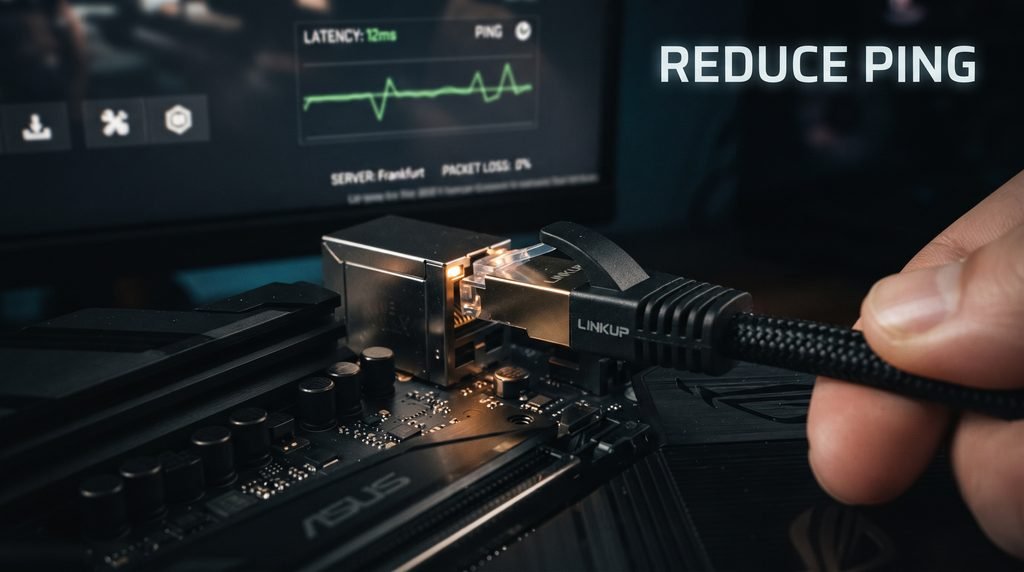
High ping can ruin an otherwise smooth online gaming session. Your character reacts late, shots appear to miss despite looking accurate, opponents seem to teleport, and menus or matchmaking can feel unusually slow. The frustrating part is that a fast internet package does not automatically guarantee low gaming latency.
If you’re trying to figure out how to reduce ping in games, the first step is identifying what is actually causing the delay. Ping is influenced by the physical distance to the game server, the route your traffic takes, WiFi conditions, network congestion, packet loss, router performance, and sometimes the game server itself. Epic Games, for example, identifies congestion, routing, and matchmaking/server location as important factors affecting Fortnite latency.
The good news is that many common causes can be addressed at home. The most useful approach is to work from the simplest fixes—server selection, Ethernet, background traffic, router placement, and basic troubleshooting—before changing advanced network settings.
What Ping Means in Online Gaming
Ping is a measurement of latency, normally expressed in milliseconds (ms). It represents how long data takes to travel between your device and the game server and return. Lower ping generally means faster communication between your system and the server.
For example, imagine two players reacting to the same event:
- Player A has 25 ms ping.
- Player B has 150 ms ping.
Player B’s communication with the server takes longer. In a competitive game, that delay can become noticeable when aiming, dodging, racing, building, or responding to another player’s action.
Ping should also be separated from other connection problems.
High ping: Data is reaching the server slowly.
Packet loss: Some packets never arrive successfully, which can produce rubber banding, missing updates, or sudden freezes.
Jitter: Ping changes significantly instead of remaining relatively stable.
Bandwidth: The amount of data your connection can transfer at a given time.
A connection can have excellent download speed and still suffer from high latency or packet loss. Intel specifically notes that packet loss can occur even on a fast internet connection.
That distinction is important because buying a faster internet package is not automatically the solution.
How to Reduce Ping in Games: Start With These Fixes
If you want the shortest practical answer, work through these steps in order:
- Select the closest available game server or region.
- Use Ethernet instead of WiFi when practical.
- Stop large downloads and uploads while gaming.
- Pause cloud backups and video streaming.
- Restart your modem and router.
- Move your router closer to the gaming device if WiFi is necessary.
- Check for packet loss and jitter, not just average ping.
- Enable suitable QoS or smart queue features on your router.
- Update router firmware and network drivers.
- Test another Ethernet cable or router port.
- Compare ping at different times of day.
- Test DNS only if you’re experiencing connection or name resolution problems.
- Avoid unnecessary VPN use when latency is already high.
- Check whether the game itself is experiencing server problems.
- Contact your ISP if the route to gaming servers remains consistently poor.
You don’t need to change all of these settings at once. Make one change, test the game, and compare the results.
Use Ethernet Instead of WiFi When Possible
One of the simplest ways to improve connection consistency is to connect your gaming PC or console directly to the router with Ethernet.
A wired connection removes many of the variables associated with wireless communication, including signal strength, interference, distance, and congestion on the WiFi channel. Both Intel and PlayStation recommend considering a wired connection when troubleshooting connection problems.
Ethernet will not magically eliminate latency caused by a distant server. If your game server is thousands of kilometers away, the physical network distance remains.
What Ethernet can do is make your local connection more stable.
If you already use Ethernet but experience packet loss, try:
- Another Ethernet cable.
- Another LAN port on the router.
- Another network port on the PC.
- Updating the network adapter driver.
- Testing another device on the same cable.
Intel recommends trying another Ethernet port or cable when troubleshooting packet loss.
If You Must Use WiFi
WiFi can still work well for gaming, especially when the router is close to the device and the wireless environment is clean.
Try placing the router:
- In an open location.
- Away from thick walls and large obstructions.
- Away from unnecessary sources of interference.
- Relatively close to the gaming device.
For a nearby device, 5 GHz WiFi can provide a useful alternative to 2.4 GHz, although 5 GHz generally has shorter range. The best option depends on your home layout and local wireless conditions. Epic recommends testing available WiFi bands when troubleshooting latency.
Choose the Right Game Server or Region
Server distance is one of the most important factors in gaming latency.
If a game gives you a choice of matchmaking regions, select a region geographically close to you when it produces a better connection. A server located closer to your physical location generally requires less network distance to travel.
Some games provide automatic region selection. Fortnite, for example, offers region and subregion options and reports ping for available locations. Its support documentation also explains that routing and the exact server used for a match can affect latency.
However, don’t assume that the geographically closest server will always produce the lowest ping.
Your ISP’s routing path matters too.
A server that looks slightly farther away on a map can occasionally produce a better connection because your ISP reaches it through a more efficient route.
If a game allows region selection, compare the available regions and use the one that consistently provides the most stable connection.
Stop Downloads, Streaming, and Background Traffic
A busy home network is one of the most common reasons ping increases during gaming.
Imagine playing an online shooter while another device is:
- Downloading a large game.
- Uploading videos.
- Synchronizing cloud files.
- Streaming high resolution video.
- Installing software updates.
- Backing up photos.
- Running a large torrent transfer.
Your gaming packets are competing with that traffic.
Epic specifically recommends avoiding large downloads, uploads, and video streams while playing because network congestion can increase latency.
Uploads can be particularly disruptive because many home connections have considerably less upload capacity than download capacity.
Before starting a competitive session, check your PC and other devices for active transfers.
On Windows, also check applications that may quietly consume network bandwidth. Game launchers, cloud storage clients, operating system updates, browsers, and synchronization tools can all contribute to background traffic.
Restart and Reposition Your Router
Restarting networking equipment is basic advice, but it remains useful when the connection has become unstable.
If you’re experiencing sudden latency after hours or days of normal performance, restart:
- Your game.
- Your PC or console.
- Your modem/router if necessary.
- Then test the connection again.
PlayStation’s network troubleshooting documentation recommends restarting the console and network equipment for several connection related problems. It also recommends using Ethernet where possible and improving wireless positioning.
Router placement matters more when you’re using WiFi.
A router hidden inside a cabinet or placed behind several large obstacles is not in an ideal position for wireless gaming.
You don’t need to put it directly beside your gaming setup, but an open, elevated location with fewer physical obstructions can help.
Check for Packet Loss and Ping Spikes
Average ping isn’t the whole story.
Suppose your game normally shows 40 ms but occasionally jumps to 300 ms. The average might still look acceptable, yet those spikes can be extremely noticeable.
Packet loss can be even more frustrating. Instead of simply delaying information, lost packets mean some data does not reach its destination successfully.
Typical symptoms include:
- Rubber banding.
- Players suddenly jumping positions.
- Delayed hit registration.
- Temporary freezes.
- Voice chat interruptions.
- Sudden disconnects.
Intel identifies faulty cables, router problems, congestion, network hardware issues, and game server problems among possible causes of packet loss.
Some games expose connection quality indicators directly. Rocket League, for example, provides indicators for packet loss, latency variation, high latency, and server health.
That makes the in game network display more useful than simply watching your download speed.
Optimize Your Router With QoS or Smart Queue Features
If your household regularly uses the internet while you game, router traffic management can be more useful than simply buying a faster connection.
Many modern routers provide features such as:
- Quality of Service (QoS).
- Gaming mode.
- Device prioritization.
- Smart Queue Management.
- Traffic prioritization.
The exact implementation varies by router.
The goal is to prevent a large download or upload from dominating the connection while you’re playing.
Epic specifically recommends looking for QoS, Quality of Service, Smart Queue, or gaming mode features when troubleshooting Fortnite latency.
However, don’t enable every networking feature blindly.
Some router “gaming” modes may prioritize traffic differently depending on the hardware. If you change a setting, test your connection before and after the change.
A good troubleshooting habit is simple: change one thing at a time.
Update Network, Router, and System Software
Outdated software can create connection problems, particularly when a router, network adapter, or console has known compatibility issues.
Check for:
- Router firmware updates.
- Network adapter driver updates.
- Windows updates.
- Console system updates.
- Game updates.
PlayStation’s troubleshooting documentation recommends updating router firmware for certain network problems.
Updating software won’t necessarily reduce a naturally high ping caused by server distance, but it can eliminate avoidable connection instability.
Test DNS, MTU, and Other Network Settings Carefully
DNS is frequently recommended in gaming discussions as a way to lower ping, but it is often misunderstood.
DNS primarily translates domain names into IP addresses. Changing DNS can sometimes improve the speed or reliability of DNS resolution, but it does not automatically shorten the physical network route used by your game’s traffic.
In other words, changing DNS is not a guaranteed gaming ping solution.
Windows allows users to configure DNS manually, while PlayStation also exposes DNS and MTU settings through its advanced network configuration.
If your game connection works normally but your ping is high, changing DNS may produce little or no difference.
MTU settings should also be approached cautiously. An incorrect manual configuration can create new connectivity problems instead of fixing latency.
For most players, automatic network settings are a sensible starting point. Only change advanced values when you have a specific reason and know how to reverse the change.
Should You Use a VPN to Reduce Ping?
A VPN is not automatically a gaming latency booster.
Normally, adding a VPN creates another networking step between your device and the destination. That can increase latency.
However, there are situations where an ISP’s normal route to a particular game server is inefficient or congested. A different VPN route could theoretically produce a better result.
That means the correct answer is test it rather than assume it works.
Compare:
- Normal connection.
- VPN connection to a nearby location.
- Ping.
- Jitter.
- Packet loss.
- Actual in game latency.
If the VPN makes the connection worse, remove it.
For competitive gaming, consistency is generally more important than chasing a tiny improvement in average ping.
Why Fast Internet Does Not Always Mean Low Ping
Internet speed and latency are different measurements.
A 1 Gbps connection does not necessarily have lower ping than a 100 Mbps connection.
Consider two connections:
| Connection | Download Speed | Gaming Ping |
|---|---|---|
| A | 100 Mbps | 25 ms |
| B | 1 Gbps | 80 ms |
Connection B is much faster for transferring large files, but Connection A may feel more responsive in an online game because its latency is lower.
Gaming usually does not require enormous bandwidth. The important factors include:
- Server distance.
- Network route.
- Congestion.
- Packet loss.
- Jitter.
- Local connection quality.
- Server performance.
Cloudflare’s networking research also distinguishes bandwidth from latency and highlights latency under load and packet loss as important measures of internet quality.
This is why upgrading your internet package may not solve a persistent ping problem.
PC, PlayStation, and Console Specific Tips
PC Gaming
For PC players, check both software and hardware.
Before launching a competitive game:
- Close unnecessary downloads.
- Pause cloud synchronization.
- Check the game launcher for updates.
- Use Ethernet where practical.
- Update network drivers.
- Disable an unnecessary VPN.
- Check Windows network settings.
- Test for packet loss if ping suddenly spikes.
Windows provides dedicated Network & Internet settings for Ethernet, WiFi, IP configuration, and DNS management.
PlayStation
On PS5 and PS4, you can configure both wireless and wired connections through the console’s network settings. PlayStation also provides advanced options for DNS, MTU, IP configuration, and proxy settings.
If WiFi is unstable, PlayStation recommends trying a wired connection and improving the console’s proximity to the router.
Xbox and Other Consoles
The same fundamental principles apply:
- Prefer wired Ethernet when practical.
- Choose a suitable server or region.
- Avoid heavy household traffic.
- Restart networking equipment.
- Check the platform’s network test.
- Check for service outages.
- Investigate packet loss separately from ping.
The exact menu names vary by console generation and software version, so use the platform’s current network support documentation rather than relying on old screenshots or guides.
A Practical Ping Troubleshooting Checklist
If your ping suddenly becomes high, don’t immediately change every router setting.
Use this sequence:
Step 1: Check the game.
See whether other players are reporting server problems or whether the game’s service status indicates an outage.
Step 2: Check your own device.
Look for downloads, updates, cloud synchronization, streams, or other applications using bandwidth.
Step 3: Check your connection type.
If you’re using WiFi, test Ethernet if available.
Step 4: Test another game.
If one game has high ping while another works normally, the problem may be specific to that game’s server or route.
Step 5: Test at another time.
If latency becomes much worse during busy evening hours, congestion may be involved.
Step 6: Check packet loss.
A high ping problem and a packet loss problem require different troubleshooting.
Step 7: Restart networking equipment.
Restart your modem/router and test again.
Step 8: Test another router or network if possible.
This can help determine whether the issue is local.
Step 9: Contact your ISP.
Provide actual test results rather than simply saying “my internet is slow.”
Epic recommends supplying test information when contacting an ISP about persistent latency problems and notes that ICMP ping tests do not necessarily behave identically to the UDP traffic used by gameplay.
Common Mistakes That Can Make Gaming Latency Worse
One mistake is focusing entirely on download speed.
Another is changing DNS repeatedly without measuring whether it made any difference.
Other common mistakes include:
- Using WiFi through several walls and assuming the connection is equivalent to Ethernet.
- Running large uploads while playing competitive games.
- Selecting a distant server because it has a larger player population.
- Installing multiple network optimization applications.
- Running a VPN without testing its effect.
- Changing MTU values without understanding them.
- Blaming the PC’s graphics settings for a network latency problem.
- Assuming every lag spike is caused by the ISP.
- Ignoring packet loss because the average ping looks acceptable.
A particularly important mistake is confusing FPS drops with network lag.
If your game freezes because the GPU or CPU is overloaded, reducing ping won’t fix the problem.
Network lag generally involves delayed or inconsistent communication with the server. Performance problems can instead involve frame time spikes, low FPS, thermal throttling, or hardware limitations.
When the Problem Is Your ISP or Game Server
Sometimes the correct fix is outside your home.
Your ISP controls much of the route between your home connection and external networks. Epic notes that routing and congestion at internet exchange points can contribute to latency spikes.
The game operator also controls its servers and matchmaking infrastructure.
If your home network is stable, another game works normally, packet loss is absent locally, and only one particular game consistently produces unusually high latency, investigate that game’s server status and support channels before replacing your router.
Likewise, if every online game becomes slow at the same time, particularly during certain hours, your ISP or local network deserves closer attention.
The objective isn’t simply to achieve the lowest possible ping number. A stable 45 ms connection can be more useful than a connection that jumps between 20 and 120 ms.
Conclusion
Learning how to reduce ping in games starts with understanding that latency is not the same thing as internet speed. The biggest improvements usually come from practical changes: connecting through Ethernet, choosing an appropriate server region, reducing network congestion, improving WiFi conditions, and identifying packet loss or jitter.
If those changes don’t solve the problem, move into deeper troubleshooting. Test your router, network hardware, software, and ISP route rather than randomly changing DNS or MTU settings.
Most importantly, measure the connection before and after each change. A stable connection with consistent latency is usually more valuable than chasing an impressive looking ping number that doesn’t remain consistent during real gameplay.
FAQ
1. What is a good ping for online gaming?
There is no universal cutoff because game type, server location, and networking conditions all matter. In general, lower and more stable latency provides a more responsive experience. Intel notes that lower ping means lower latency and identifies sub 100 ms as a useful general benchmark, although competitive games can make smaller differences more noticeable.
2. Does Ethernet reduce ping in games?
Ethernet can reduce connection instability and sometimes lower local network latency compared with WiFi. Its biggest advantage is consistency because it avoids many wireless interference and signal strength issues. It cannot eliminate latency caused by a distant game server.
3. Does faster internet reduce gaming ping?
Not necessarily. Download and upload speed measure bandwidth, while ping measures latency. A slower connection can have lower ping than a much faster connection if it has a better route to the game server.
4. Can changing DNS lower gaming ping?
Changing DNS may affect domain name resolution, but it is not a guaranteed way to lower the latency of gameplay traffic. If your game already connects normally, DNS changes may produce little difference. Windows and PlayStation both allow DNS configuration when troubleshooting network issues.
5. Why is my ping high even though my internet is fast?
Possible causes include server distance, ISP routing, network congestion, WiFi interference, packet loss, router problems, or the game’s own server infrastructure. Fast bandwidth does not guarantee low latency.
6. Can a VPN reduce gaming ping?
Usually, adding a VPN does not automatically reduce ping and may increase it. In unusual cases, a VPN’s route can outperform an ISP’s normal route to a particular server. The only reliable way to know is to compare the actual in game results.
7. Why does my ping suddenly spike while gaming?
Common causes include network congestion, uploads or downloads, WiFi interference, packet loss, ISP routing problems, or temporary server issues. Checking whether the spike occurs only in one game can help narrow down the cause.
8. Should I change my MTU settings to reduce ping?
Not unless you have a specific networking problem that requires it. MTU affects packet transmission and an inappropriate manual value can create connectivity issues. Keep automatic settings unless there is a clear reason to change them.
LEAVE A PIXEL ZINE COMMENT