Roblox is an online gaming platform where players can discover millions of user-created experiences, play with friends, customize avatars, and create their own games. Unlike a traditional game with one fixed story or set of rules, Roblox offers many different types of experiences, from obstacle courses and role-playing games to simulators, racing games, and competitive challenges.
If you are learning how to play Roblox game experiences for the first time, the process is straightforward: create an account, install Roblox on a supported device, choose an experience, and press Play. The controls and objectives then depend on the experience you select.
The bigger challenge for new players is knowing where to begin. Roblox has a huge selection of games, different control systems, optional purchases, and social features. This guide explains how to get started, choose your first experience, understand the controls, play with friends, and avoid common beginner mistakes.
What Is Roblox and How Does It Work?
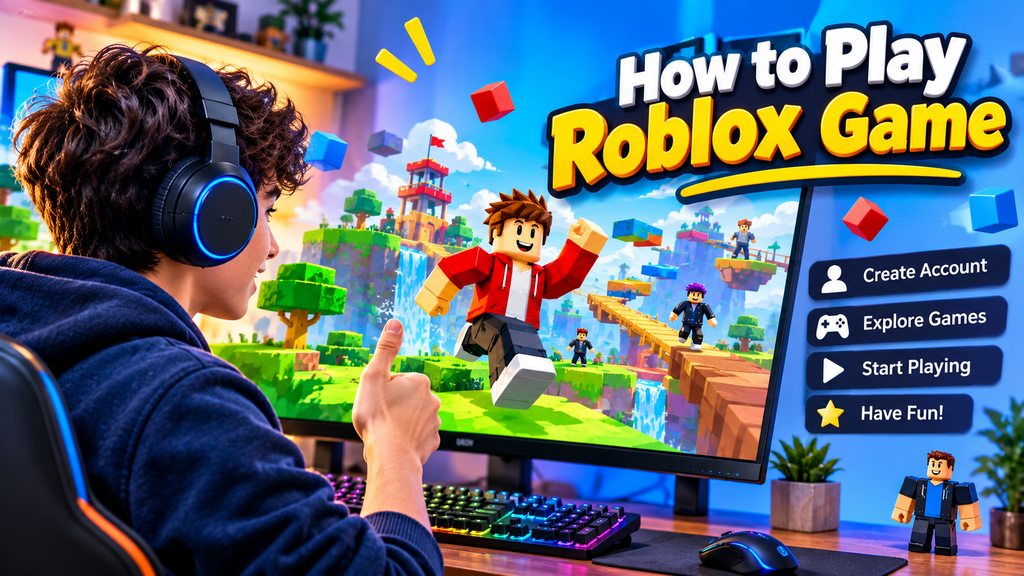
Roblox is a platform for playing and creating interactive 3D experiences. It is not one single game with a shared objective. Instead, independent creators and development teams publish experiences that players can access through the Roblox app.
You might spend one session completing an obstacle course, another building a virtual home, and a third competing in a racing game. Each experience has its own rules, objectives, maps, and gameplay systems.
Some common types of Roblox experiences include:
- Obby games: Obstacle courses that test timing, jumping, and movement.
- Role-playing games: Social experiences where players take on characters, explore locations, and interact with others.
- Simulators: Games focused on activities such as collecting resources, training skills, or managing virtual businesses.
- Tycoon games: Experiences where players build and expand businesses or production systems.
- Racing games: Driving challenges that may include time trials, competitions, or vehicle upgrades.
- Survival and adventure games: Experiences involving exploration, teamwork, resource management, or combat.
The important point is that learning Roblox means learning how to use the platform and then understanding the rules of each individual experience. A control or strategy that works in one game may not work in another.
What You Need Before Playing Roblox
You do not need an expensive gaming PC or a dedicated console to begin. Roblox is available on several supported devices, including computers, smartphones, tablets, and consoles.
Before starting, make sure you have:
- A supported device.
- A reliable internet connection.
- A Roblox account.
- Enough available storage for the app and updates.
- A keyboard and mouse, touchscreen, or compatible controller, depending on your device.
A stable internet connection is particularly important because Roblox experiences are online. Weak Wi-Fi can cause delayed movement, slow loading, disconnections, or lag during multiplayer sessions.
Which device should beginners choose?
| Device | What makes it useful |
|---|---|
| Windows or Mac computer | Keyboard and mouse controls, larger display |
| Android phone or tablet | Touchscreen controls and portability |
| iPhone or iPad | Convenient mobile access |
| PlayStation or Xbox | Controller-based gameplay on supported consoles |
Your preferred device depends on the type of experience you want to play. Obstacle courses and games requiring precise movement may feel easier with a keyboard and mouse, while simple simulators can work comfortably on a touchscreen.
How to Create a Roblox Account
You need a Roblox account to access the platform’s features and join experiences.
Follow these steps:
- Open the official Roblox website at Roblox.com.
- Select the option to sign up.
- Enter the requested information, including your date of birth.
- Choose a unique username.
- Create a strong password.
- Complete any verification steps shown on the screen.
- Sign in after registration.
Your username is the identity other players can see, so avoid including your full name, home address, phone number, or other personal details.
Choose a password that is difficult to guess and different from passwords you use on other websites. Add a recovery email address where appropriate so you have a way to recover your account if you lose access.
Roblox accounts are free to create. You do not need to buy Robux simply to register and start exploring the platform.
Beginner tip: Write down your username somewhere safe, but never share your password, verification codes, or account recovery details with another player.
How to Download and Install Roblox
After creating an account, install Roblox on the device you plan to use. Always download the official app through Roblox or your device’s trusted app store rather than third-party download websites.
On a Windows or Mac computer
- Visit Roblox.com and sign in.
- Browse or search for an experience.
- Open the experience’s page.
- Select the Play button.
- Follow the instructions to install the Roblox application if prompted.
- Allow the Roblox client to launch.
- Return to the experience and start playing.
The installation process may vary slightly depending on your operating system and browser. If Roblox is already installed, selecting Play should open the client.
On Android or iPhone
- Open Google Play or the Apple App Store.
- Search for Roblox.
- Check that the app is the official Roblox application.
- Install it on your device.
- Open the app.
- Sign in to your Roblox account.
- Browse the available experiences and select one to play.
On mobile, the Roblox app provides access to experience discovery, account features, avatar customization, and gameplay.
On PlayStation or Xbox
Roblox is also available on supported console platforms. Open your console’s official digital store, search for Roblox, and install the official application if it is available for your device and region.
Launch the app and sign in using the account instructions displayed on the screen. Console availability and feature support can differ from PC and mobile, so check the relevant platform store for current details.
How to Find and Join Your First Roblox Game
Once Roblox is installed and you are signed in, the next step is choosing an experience. This is where new players can feel overwhelmed: there are many options, and popular experiences are not necessarily the easiest ones for beginners.
Start with a genre you already understand. If you enjoy platform games, try an obstacle course. If you prefer exploration, look for an adventure experience. Players who enjoy building or management games may prefer a tycoon or simulator.
Here is how to find an experience:
- Open Roblox and sign in.
- Go to the Experiences or discovery area.
- Browse the recommended and popular selections.
- Use the search feature if you have a particular title or genre in mind.
- Select an experience to open its details page.
- Read its description and check its content information.
- Press Play to join.
Roblox’s mobile support documentation also explains how to browse categories and search for experiences by title or keyword. Roblox Support+1
How to choose a good first experience
Do not choose a game only because it appears popular. Check whether its gameplay matches your interests and experience level.
For a first session, consider these factors:
- Clear objectives: Experiences that explain what to do are easier to understand.
- Simple controls: Avoid starting with a game that requires complicated combinations or advanced movement.
- Beginner-friendly design: Look for tutorials, instructions, or helpful signs.
- Comfortable pace: A slower experience gives you time to learn the interface.
- Suitable content: Check the experience’s content maturity information, particularly for younger players.
Your first goal should be to understand movement, camera control, interaction, and the basic objective. You can explore more competitive or complicated experiences after you become comfortable.
Roblox Controls for PC, Mobile, and Console
Roblox does not use one universal control layout for every experience. Developers can create different mechanics, and some experiences introduce their own buttons or actions.
However, several basic controls are common enough to help beginners get started.
Basic PC controls
Many Roblox experiences use familiar keyboard and mouse controls.
| Action | Common PC control |
|---|---|
| Move forward | W or Up Arrow |
| Move backward | S or Down Arrow |
| Move left | A |
| Move right | D |
| Jump | Spacebar |
| Move camera | Mouse movement |
| Select or interact | Mouse click or an in-game prompt |
These are common starting controls, not a guarantee for every experience. Some games change the key bindings or add actions such as sprinting, crouching, attacking, or interacting with objects.
Roblox’s official learning material lists W, A, S, D or arrow keys for movement and Space for jumping in its basic desktop training. Documentation – Roblox Creator Hub
Mobile controls
Mobile players use touchscreen controls. The layout can vary by experience, but a common arrangement includes:
- A virtual movement control on the lower-left side.
- A jump button on the lower-right side.
- Touch-and-drag gestures to rotate the camera.
- Additional on-screen buttons for actions specific to the experience.
Keep your thumbs in a comfortable position and avoid covering important parts of the screen. If movement feels awkward, try adjusting how you hold the device or using a larger screen where possible.
Console controls
On consoles, movement and camera control generally use the controller’s analog sticks. Buttons for jumping, interacting, or performing special actions depend on the experience.
Check the on-screen instructions when you enter a new game. Some experiences display a control guide, while others provide instructions through menus or tutorials.
Useful habit: Spend the first minute learning how to move, jump, rotate the camera, and interact. It is much easier to enjoy the objective once the controls feel familiar.
How to Play Roblox With Friends
Playing with friends can make Roblox more enjoyable, particularly in cooperative adventures, role-playing experiences, racing games, and multiplayer challenges.
To play together:
- Sign in to your Roblox account.
- Find your friend’s Roblox username.
- Send a friend request through the platform.
- Wait for them to accept it.
- Check whether they are online and playing an experience.
- If the experience supports joining friends, use the available Join option or follow its invitation system.
You can also coordinate before starting. Agree on an experience, make sure everyone has access to it, and decide whether you want to work together or compete.
Some experiences have private servers or other ways to create a session for a smaller group. Availability and pricing depend on the individual experience, so check its details before purchasing anything.
What if you cannot join a friend?
There are several possible reasons:
- Your friend is not currently online.
- The experience does not support the joining method you are using.
- The server is full.
- Your account’s privacy or communication settings limit access.
- The experience has age or content restrictions.
- Your internet connection is unstable.
Check the experience page, account settings, and your connection before assuming something is wrong with the app.
Also remember that Roblox chat and communication features have age-related requirements and settings. Access may depend on age checks, parental consent, and regional availability. Roblox Support+1
Tips to Make Your First Roblox Experience Easier
A little preparation can prevent frustration during your first few sessions. These tips are useful whether you are playing an obstacle course, simulator, role-playing experience, or adventure game.
Read the instructions before moving ahead. Many experiences explain their objectives through signs, menus, tutorials, or short introductory sequences. Skipping these instructions can leave you unsure about what to do.
Learn the map before rushing. Take a moment to identify important areas, checkpoints, shops, safe zones, or objective markers. Knowing where you are going can save time.
Use checkpoints when available. In obstacle courses and platforming experiences, checkpoints let you continue from a saved location after failing a section. Look for them before attempting difficult jumps.
Do not spend Robux immediately. Some experiences offer paid upgrades, boosts, cosmetics, or other items. Play for a while before deciding whether any purchase is worthwhile.
Experiment with the camera. Camera positioning can make a significant difference in platforming, racing, and exploration. Adjust your view until you can see obstacles and nearby objects clearly.
Try different genres. Roblox is not limited to one style. If your first experience is not enjoyable, move on to something else rather than assuming the entire platform is unsuitable.
Pay attention to game-specific rules. An experience may have its own progression system, currency, inventory, or multiplayer rules. Read the instructions instead of assuming every Roblox game works the same way.
Robux, Free Items, and In-Game Purchases
Robux is Roblox’s virtual currency. Players can use it for eligible purchases on the platform, including avatar items and certain experience-specific products.
However, Robux is not required to start playing Roblox. Many experiences can be accessed without purchasing anything, although individual developers may offer paid content or features.
Before spending money, understand what you are buying.
- Avatar items: Change the appearance of your character.
- Game passes: May provide special features or permanent benefits in a particular experience.
- Developer products: Can include repeatable purchases such as in-game currency or consumable boosts.
- Private servers: Some experiences offer private access for a fee, while others may provide it free.
The value of these purchases depends on how much you enjoy the experience and what the item actually provides. A paid upgrade is not automatically necessary to progress.
Avoid websites or players promising free Robux in exchange for your password, verification codes, or account access. Use official Roblox purchasing options and never trust offers that require you to complete suspicious surveys or download unknown software.
Roblox Safety Tips for New Players
Roblox includes social features that allow players to interact, but beginners should understand basic account and privacy precautions before joining public experiences.
Start with these habits:
- Use a username that does not reveal your real identity.
- Keep your password and verification codes private.
- Do not share your home address, phone number, school, or other personal information.
- Be cautious about links sent by strangers.
- Do not download third-party programs offered by other players.
- Report inappropriate behavior through Roblox’s available reporting tools.
- Use privacy and communication settings that suit your needs.
Roblox advises users to protect passwords, avoid sharing security codes, and be careful about suspicious programs and account offers. Roblox Support+1
Parental controls for younger players
Parents and guardians can use Roblox parental controls to manage aspects of a child’s experience. Available settings include content maturity, communication, spending limits, screen time, and friend-related options.
These controls can help families decide which experiences are appropriate and how children interact with others. Roblox explains that parents can manage settings through a linked parent account or available parent features on the child’s device. Roblox Support+1
Parents should review these settings with their child rather than relying only on default options. The right setup depends on the child’s age, maturity, and the family’s preferences.
Common Roblox Problems and How to Fix Them
New players sometimes experience installation problems, slow loading, connection errors, or controls that do not respond as expected. Many issues can be resolved with a few basic checks.
| Problem | What to try |
|---|---|
| Roblox will not open | Restart the app and device, then check for updates |
| Experience takes too long to load | Check your internet connection and try again |
| Movement feels delayed | Use a more stable connection and close unnecessary apps |
| Controls are confusing | Check the experience’s instructions or settings |
| Cannot join a friend | Check privacy settings, server access, and experience support |
| App installation fails | Check device compatibility and available storage |
If Roblox continues to crash, make sure your operating system and app are up to date. On a computer, close unnecessary background programs and check whether security software is blocking the app.
If an experience alone is not working, the issue may be related to that particular game rather than the Roblox platform. Try another experience to see whether the problem continues.
For account-related issues, use Roblox’s official support resources rather than giving your login information to someone claiming they can fix it.
Is Roblox Good for Beginners?
Roblox can be a good starting point for players who enjoy trying different genres and learning new mechanics. Its biggest advantage is variety: you can move between simple obstacle courses, creative building experiences, social role-playing games, and more challenging multiplayer activities.
The platform can also be confusing at first. Experiences are created by different developers, so quality, instructions, controls, and monetization can vary. A beginner may find one game easy to understand and another difficult without any prior explanation.
The best approach is to start with an experience that has clear instructions and simple controls. Learn how the platform works before moving into more complicated games.
Roblox is also a platform that younger players should use with appropriate privacy settings and parental guidance. The variety of user-created content makes it important to check each experience rather than assuming every game is suitable for every age.
Final Thoughts
Learning how to play Roblox game experiences is mostly about understanding the platform, choosing a suitable first game, and getting comfortable with its controls. Create an account, install the official app, browse the experience catalog, and select something that matches your interests.
Do not worry about mastering every feature immediately. Start with simple objectives, learn the camera and movement controls, and explore different genres as you gain confidence. If you play with friends, check the experience’s joining options and communication settings first.
Roblox offers a wide range of ways to play, and you do not need to spend money to begin exploring. A good first experience, a secure account, and a little patience are enough to get started.
FAQ
Is Roblox free to play?
Yes. Creating a Roblox account and accessing many experiences is free. Some experiences offer optional purchases, and certain features or items may require Robux.
Can I play Roblox without creating an account?
You generally need a Roblox account to join experiences and use the platform’s main features. Create an account through the official Roblox website or app.
How do I play Roblox on a PC?
Visit Roblox.com, sign in, choose an experience, and select Play. Install the Roblox application if prompted, then launch the experience.
How do I play Roblox on my phone?
Download the official Roblox app from Google Play or the Apple App Store. Sign in, browse experiences, select one, and tap Play.
What are the basic Roblox controls?
On many PC experiences, use W, A, S, and D to move, Space to jump, and the mouse to control the camera. Mobile games generally use touchscreen controls. Individual experiences may use different controls.
Can I play Roblox with friends?
Yes. Add friends through Roblox, check when they are online, and use the available joining or invitation options. Whether you can join directly depends on the experience and account settings.
Do I need Robux to enjoy Roblox?
No. You can play many experiences without buying Robux. It is an optional virtual currency used for eligible avatar items and in-experience purchases.
Is Roblox safe for children?
Roblox provides parental controls, content maturity settings, communication controls, and spending management. Parents should review these features and choose settings appropriate for their child
LEAVE A PIXEL ZINE COMMENT