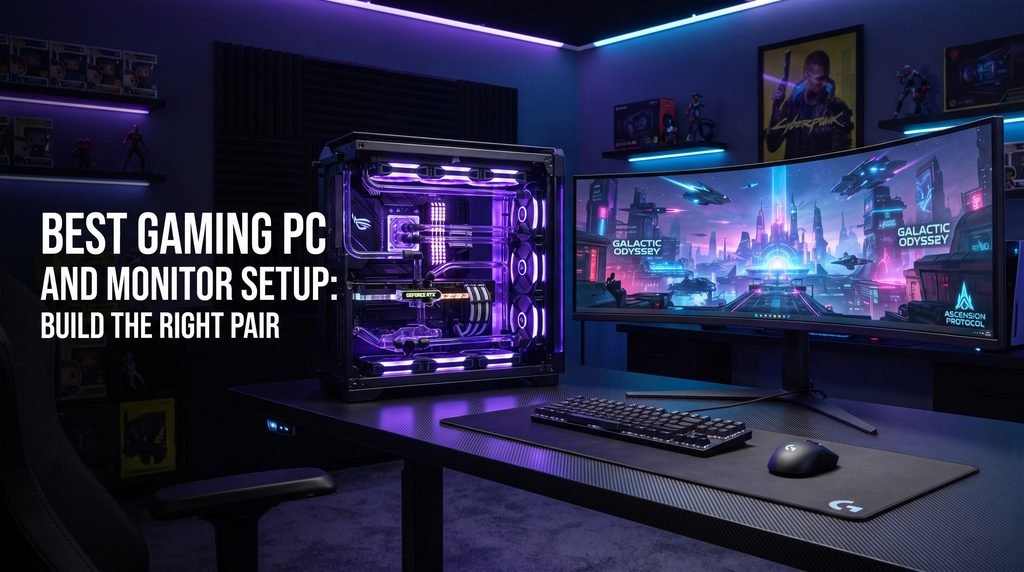
The Best Gaming PC and Monitor Setup is not simply a matter of buying the most powerful graphics card and the highest refresh rate display you can afford. The two components need to work together.
A powerful gaming PC paired with a basic 60Hz monitor can leave some of the system’s rendering capability difficult to appreciate. On the other hand, buying a 360Hz or higher display for a PC that regularly struggles to produce the required frame rates can put money into a feature that a particular player may rarely use.
The better approach is to build around a target: resolution, frame rate, game type, image quality, and budget.
For many players, 1440p offers a useful balance between image sharpness and gaming performance. Competitive players may prioritize high refresh rates and low latency over resolution. Players who prefer visually demanding single player games may put more emphasis on 4K, HDR, contrast, and image quality.
This guide explains how to match the PC and monitor, which specifications deserve attention, what can safely be ignored, and how to build a setup that remains useful as games and hardware evolve.
What Makes a Good Gaming PC and Monitor Setup?
A good setup has a clear relationship between the computer’s performance and the display’s capabilities.
The graphics card determines much of the rendering performance, while the CPU can become especially important at high frame rates and lower resolutions. The monitor then determines how those frames are displayed.
Think of the setup as a chain:
Game → CPU → GPU → connection → monitor → your eyes
A weakness anywhere in that chain can affect the final experience.
For example, a competitive player targeting very high frame rates may benefit from a high refresh display and a CPU/GPU combination capable of sustaining those frame rates. A player focused on cinematic single player games may gain more from higher resolution, stronger HDR, better contrast, and a larger screen.
There is no single specification that makes a gaming monitor “best.”
The right choice depends on what the PC is expected to do.
Match the Monitor to the Gaming PC
The first decision should usually be the target resolution and refresh rate.
1080p Gaming
1080p remains practical for players who prioritize accessibility, high frame rates, or competitive gaming.
Its lower pixel count places less rendering demand on the GPU than 1440p or 4K. That can make it easier for a system to reach high frame rates, especially in esports titles.
A 1080p setup can therefore make sense for:
- Competitive shooters
- Fast paced esports
- Entry level gaming PCs
- Players upgrading from older hardware
- Smaller monitors
- Players who prioritize frame rate over image density
The drawback is that larger screens can make 1080p look less sharp compared with higher resolutions.
For a compact competitive setup, however, 1080p can still be perfectly reasonable.
1440p Gaming
1440p is one of the most versatile targets for a modern gaming PC.
It provides noticeably more image detail than 1080p without imposing the same rendering workload as 4K. That makes it attractive for players who want a balance between visual quality and performance.
A 1440p setup can work particularly well for:
- General PC gaming
- RPGs
- Open world games
- Racing games
- Strategy games
- Competitive gaming
- Mixed use PCs
The ideal refresh rate depends on the GPU, games, and player’s priorities. There is little value in choosing a refresh rate simply because a monitor advertises an impressive number.
Instead, ask how often the PC can actually produce frame rates that take advantage of it.
4K Gaming
4K is primarily about image detail.
At 3840×2160, the display contains substantially more pixels than 1080p or 1440p. That can produce a sharper image, particularly on larger screens, but rendering at 4K can place considerably more demand on the GPU.
A 4K gaming setup is attractive for players who care about:
- Detailed environments
- High resolution textures
- Large displays
- Cinematic single player games
- Simulation games
- Strategy games
- High end PC hardware
The important trade off is performance.
If a player chooses 4K but then has to reduce image settings significantly to maintain an acceptable frame rate, the resolution advantage may not be worth the cost compared with a well balanced 1440p setup.
Choosing the Right Gaming PC Hardware
The gaming PC should be selected around the monitor’s target rather than purchased independently.
Graphics card
The GPU is the most important component for determining graphics rendering performance in many games.
A higher end GPU generally makes more sense for higher resolutions and demanding graphical settings. At 1080p, particularly with a very fast CPU and competitive games, the GPU may not always be the only limiting factor.
Before buying a graphics card, consider:
- Target resolution
- Desired frame rate
- Game genres
- Ray tracing use
- Upscaling features
- VRAM requirements
- Monitor refresh rate
- Expected upgrade period
Do not assume that a more expensive GPU automatically improves every setup equally.
CPU
The CPU matters particularly when targeting high frame rates.
Competitive games running at lower resolutions can become more CPU sensitive because the GPU has less rendering work to perform per frame. A strong CPU can therefore complement a high refresh gaming monitor.
For a mixed gaming PC, the goal is balance rather than spending disproportionately on one component.
A very powerful GPU paired with a processor that regularly limits performance is not an efficient configuration. The same principle works in reverse.
Memory
Modern gaming PCs benefit from having enough system memory for the operating system, games, background applications, and multitasking.
The exact capacity to choose should depend on current game requirements, the user’s other workloads, and the motherboard platform.
For a gaming PC, memory speed and compatibility also matter. Buyers should verify the motherboard’s supported memory specifications rather than selecting modules based only on a headline frequency.
Storage
A fast SSD is now an important part of a modern gaming PC.
Games have become increasingly large, and storage affects installation capacity and general system responsiveness. A practical setup should provide enough capacity for the games that are actually played rather than forcing constant uninstalling and reinstalling.
A useful configuration is often:
- Fast primary SSD for Windows and frequently played games
- Additional storage for a larger game library where needed
The exact storage interface is less important than buying reliable storage with sufficient capacity and performance for the system.
Gaming Monitor Features That Actually Matter
Monitor shopping can become confusing because manufacturers advertise a large number of specifications.
Not all of them deserve equal attention.
Resolution
Resolution determines the number of pixels displayed.
Higher resolution generally improves image detail but also increases the GPU workload.
The sensible choice is therefore connected directly to the graphics card and screen size.
Refresh rate
Refresh rate describes how many times per second the monitor can update the image.
A 60Hz monitor refreshes 60 times per second. Higher refresh rates can make motion appear smoother and can be especially useful for competitive games.
But the benefit depends on the entire system.
If a PC consistently produces substantially fewer frames than the monitor’s maximum refresh rate, the player will not receive the full benefit of that refresh ceiling.
Response time
Response time concerns how quickly pixels can transition between states.
Manufacturers often advertise extremely low response times, but headline figures should not be treated as the complete picture.
Real world performance can depend on:
- Pixel transition behavior
- Overdrive settings
- Refresh rate
- Brightness level
- Panel technology
- Specific transition combinations
A monitor with a realistic, well tuned response profile is more useful than one chosen solely because the box advertises an unusually small number.
Refresh Rate, Response Time, and Variable Refresh Rate
Variable refresh rate is one of the most useful features for modern PC gaming.
Traditional fixed refresh displays operate at a predetermined cadence. The game’s frame rate, however, can fluctuate depending on the scene and rendering workload.
VESA’s Adaptive Sync technology was developed to allow the display refresh process to better synchronize with varying frame rates, reducing visual problems such as tearing and stuttering.
AMD’s FreeSync technology is one implementation of adaptive synchronization. AMD describes its FreeSync tiers as supporting features including tear free gaming, low latency, and low framerate compensation, with capabilities varying by tier.
For a gaming PC and monitor combination, VRR support is therefore worth checking before purchase.
The important point is compatibility.
Check whether:
- The GPU supports the monitor’s VRR technology
- The monitor supports the relevant connection
- The desired resolution and refresh rate work over that connection
- The VRR range is appropriate for the games being played
HDR, Color, and Panel Technology
HDR can improve games that support it by expanding the range between dark and bright portions of an image and providing a wider color range.
Microsoft notes that HDR capable Windows systems can display brighter highlights, deeper shadows, and a wider range of colors than SDR displays. Microsoft also recommends looking for certified HDR displays when purchasing an HDR monitor.
However, the word “HDR” on a product page does not automatically guarantee an impressive HDR gaming experience.
The display’s brightness, contrast characteristics, local dimming behavior, color performance, and certification are all relevant.
For a serious HDR focused setup, look beyond a basic HDR label.
IPS, VA, and OLED
Panel technology also influences the character of the image.
IPS displays are often valued for viewing angles and balanced image quality. They are common choices for general gaming and mixed use systems.
VA panels can offer strong contrast and deep blacks, making them attractive for darker games and media consumption. Individual models can differ substantially in motion performance.
OLED displays can provide extremely strong contrast and fast pixel response. They can be particularly attractive for players who want high-end image quality and responsive motion. However, buyers should understand OLED specific considerations such as burn-in risk and manufacturer warranty policies.
There is no panel technology that wins every use case.
Connectivity and Desk Setup
A good monitor can still be frustrating if the connection cannot deliver the desired resolution and refresh rate.
Check the monitor’s:
- DisplayPort version
- HDMI version
- Supported resolution and refresh combinations
- USB connectivity
- USB hub features
- Audio output
- Adaptive sync compatibility
Do not assume that a port’s physical shape tells you everything about its capabilities.
The monitor’s specifications should explicitly state what resolution and refresh combinations each input supports.
Windows also provides display controls for refresh rate and HDR. Microsoft recommends checking the display settings and using the appropriate connection when HDR support differs between interfaces.
Setup Recommendations by Gaming Style
Instead of declaring one configuration universally “best,” it is more useful to match the setup to the player.
Competitive gaming setup
Competitive players should prioritize:
- High refresh rate
- Consistent frame delivery
- Low latency
- Strong CPU performance
- GPU performance appropriate for the target resolution
- Good mouse and keyboard positioning
A 1080p or 1440p high refresh setup can make more sense than spending heavily on 4K image quality that does not directly support the player’s priorities.
Balanced gaming setup
For someone who plays everything from shooters to RPGs, racing games, strategy games, and open world titles, 1440p is a strong target to consider.
The ideal PC should have enough GPU power to drive the monitor comfortably while leaving room for demanding games.
A quality VRR monitor can also help smooth out frame rate fluctuations.
High end visual gaming setup
Players who primarily want impressive visuals should consider:
- High resolution display
- Strong GPU
- High quality HDR
- Good contrast
- Wide color coverage
- Appropriate VRR
- Large screen size where suitable
This type of system makes sense for visually demanding single player games and other applications where image quality matters more than extreme competitive refresh rates.
Streaming and multitasking setup
Streamers and content creators may need to consider more than gaming performance.
A second monitor can be useful for:
- Chat
- Streaming controls
- Recording software
- Browser windows
- Discord
- Performance monitoring
Windows 11 supports multiple display configurations, and Microsoft documents built in functionality for working with multiple monitors.
The primary gaming display should still be selected around the main gaming workload.
How to Position the Monitor
A technically excellent monitor can feel uncomfortable if it is positioned badly.
The top of the screen should generally sit around a comfortable eye level rather than forcing the player to constantly tilt their head.
Distance also matters.
A large 4K display viewed from an appropriate distance can provide a different experience from a smaller monitor sitting close to the player.
Consider:
- Eye level
- Viewing distance
- Screen size
- Desk depth
- Monitor stand adjustment
- Chair height
- Keyboard and mouse position
- Lighting
A monitor arm can also be useful when the factory stand consumes too much desk space or lacks sufficient adjustment.
Common Gaming PC and Monitor Setup Mistakes
Buying the monitor after the PC
The monitor should be part of the performance plan from the beginning.
If the PC is designed for 1440p but the buyer later chooses an inexpensive 1080p display, some of the system’s capabilities may be underused.
Chasing the highest refresh rate
More hertz is not automatically more useful.
A player who mostly plays slower single player games may get more value from resolution, HDR, contrast, and screen size than from an extremely high refresh ceiling.
Ignoring VRR
Frame rates fluctuate.
A monitor with appropriate variable refresh support can make inconsistent frame delivery less distracting.
Buying a monitor with impressive specifications but poor balance
A display might advertise high refresh, HDR, wide color, and a low response time number, yet still have compromises that matter more in actual use.
Independent measurements and detailed reviews are valuable when evaluating a particular model.
Forgetting connectivity
Before buying, verify that the PC’s graphics card and the monitor can deliver the desired resolution and refresh rate through the selected cable and input.
Spending everything on the PC
The monitor is where the rendered image is actually presented.
A balanced budget should include both.
How to Build a Setup That Can Grow
Future proofing does not mean buying the most expensive hardware available.
It means leaving reasonable upgrade paths.
For the PC, that might mean choosing a motherboard and power supply appropriate for the intended platform and future component upgrades.
For the monitor, it can mean selecting a display with enough refresh rate, VRR support, and connectivity that it will remain useful through a future GPU upgrade.
Think about the next upgrade before buying the current one.
If the plan is to replace the graphics card in a couple of years, purchasing a monitor that can take advantage of the future performance may make more sense than replacing both components at the same time.
At the same time, avoid paying heavily for specifications you have no intention of using.
A Practical Checklist Before Buying
Before finalizing a Best Gaming PC and Monitor Setup, check these questions:
- What resolution do I actually want?
- What frame rate do my games normally target?
- Which GPU can realistically deliver that performance?
- Will my CPU support the desired frame rate?
- Does the monitor support VRR with my GPU?
- Which HDMI or DisplayPort connection is required?
- Do I care more about competitive speed or image quality?
- Is HDR genuinely important to me?
- How large should the display be for my desk?
- Will I use one monitor or two?
- Do I need USB connectivity?
- Is the monitor height adjustable?
- Can the PC and monitor be upgraded independently?
If these answers line up, the setup is likely to feel more coherent than a collection of individually impressive components.
Conclusion
The Best Gaming PC and Monitor Setup is the one where the components are matched around a clear gaming goal.
A competitive player may prioritize high refresh rates, consistent frame delivery, low latency, and a responsive display. A general PC gamer may prefer the balance of 1440p, strong GPU performance, and adaptive refresh. A visual focused player may prioritize 4K, HDR, contrast, and image quality.
The important part is not chasing the biggest specification on a product page. It is making sure the GPU can feed the monitor, the monitor can display the desired resolution and refresh rate, and the entire workstation remains comfortable for long sessions.
Features such as VRR, suitable connectivity, HDR support, and adjustable ergonomics can matter just as much as raw performance. Windows also provides modern display features such as HDR, Auto HDR, and optimizations for compatible windowed games, giving users additional ways to configure supported hardware.
Build the system around the games you actually play, choose the display around what the PC can realistically deliver, and leave room for future upgrades. That approach produces a setup that feels balanced instead of simply expensive.
FAQ
What is the best resolution for a gaming PC?
There is no universal answer. 1080p is practical for high frame rate competitive gaming and less demanding systems, 1440p offers a strong balance between image quality and performance, while 4K is suited to players prioritizing high-resolution visuals and who have sufficient GPU performance.
Should I buy the monitor or gaming PC first?
Ideally, plan them together. The monitor’s resolution and refresh rate establish a performance target for the PC, while the PC’s GPU determines how effectively that display can be used.
Is 1440p better than 4K for gaming?
It depends on the player’s priorities. 1440p generally requires less GPU rendering power and can make high frame rates easier to achieve. 4K provides greater image detail but typically demands more GPU performance.
Is a high refresh rate monitor worth it?
It can be, particularly for competitive games and fast paced gameplay. The benefit depends on whether the gaming PC can produce enough frames to take advantage of the monitor’s refresh rate.
Do I need HDR on a gaming monitor?
Not necessarily. HDR can improve supported games, but the quality of the HDR implementation matters. Microsoft recommends looking for certified HDR displays rather than assuming every display marketed as HDR provides the same experience.
What is VRR on a gaming monitor?
Variable refresh rate allows the display’s refresh behavior to adapt to changing frame rates, helping reduce tearing and stuttering. Adaptive Sync and AMD FreeSync are examples of technologies designed to provide smoother gaming under changing frame rates.
Is OLED good for PC gaming?
OLED can provide excellent contrast and very fast pixel response, making it attractive for gaming. Buyers should nevertheless consider the specific model, brightness behavior, warranty, and the potential for image retention or burn in related concerns.
Should a gaming setup use two monitors?
A second monitor is useful for players who stream, create content, monitor chat, use Discord, or multitask while gaming. For a pure gaming setup, however, one well matched primary display may be sufficient.
LEAVE A PIXEL ZINE COMMENT